Powerpoint Translation: A Practical Workflow for Accurate, Editable Slides
Published Fri Sep 11 2026 | 14 min read
Learn a reliable powerpoint translation workflow for editable slides, including terminology control, OCR, layout checks, review gates, and delivery.
PowerPoint translation succeeds when the translated deck remains understandable, editable, visually stable, and appropriate for its audience—not merely when each sentence has a plausible equivalent. This guide gives legal, research, business, education, government, and healthcare teams a repeatable workflow: inventory the source, prepare terminology, translate, repair layout, review high-risk content, and release a controlled final file. The concrete outcome is a presentation that a subject-matter reviewer can approve without rebuilding every slide from scratch.
A slide deck creates special problems for document translation. Text may be split across text boxes, embedded in diagrams, hidden in speaker notes, or baked into screenshots. A German expansion can push a heading into a second line; an Arabic translation can require right-to-left design changes; a legal footnote can become unreadable after resizing. Treat the job as content translation plus presentation engineering, with explicit checkpoints for both.
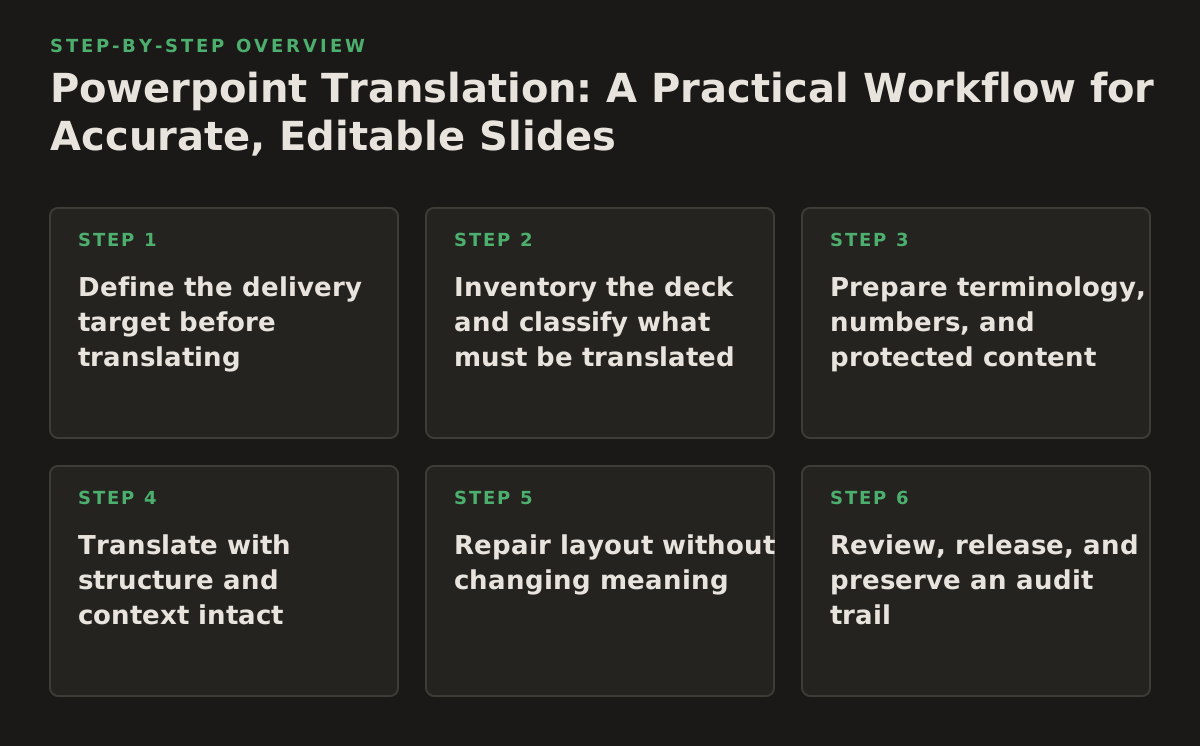
Step 1: Define the delivery target before translating
Start by writing down what “done” means for this deck. The right workflow depends on whether the audience needs an editable working file, a review PDF, a presentation-ready deck, or an accessible archive. A court submission, an investor briefing, a multilingual training course, and a clinical education deck should not share the same acceptance test.
Turn a vague request into acceptance criteria
Ask the requestor to confirm:
- Source and target languages, including regional conventions such as Brazilian versus European Portuguese or Canadian versus European French.
- Output format: editable PowerPoint, PDF, both, or a translated deck plus a terminology file.
- Audience and purpose: internal review, public presentation, regulatory submission, classroom use, or patient-facing education.
- Preservation requirements: master layouts, tables, charts, hyperlinks, notes, animations, speaker cues, and image captions.
- Approval owner: the person authorized to resolve disagreements between linguistic accuracy and legal, scientific, or brand requirements.
- Confidentiality handling: which files may be uploaded to a translation service and which must remain within an approved environment.
Use a short acceptance statement such as: “Deliver an editable English-to-Japanese deck, preserving slide order, charts, citations, speaker notes, and hyperlinks; no untranslated visible text; all medical terms reviewed by the clinical lead.” This is more useful than “keep the formatting.”
If the presentation contains charts, export the underlying data or provide the source spreadsheet when possible. If it contains screenshots of software, decide whether labels inside those screenshots should remain in the source language, receive translated callouts, or be recreated. If it contains video, audio, or animation, specify whether the requirement is subtitles, translated narration, or unchanged media with translated surrounding text.
Choose a review depth based on consequence
Not every slide deserves the same review effort. A low-risk internal status deck can use a lighter check than a clinical protocol or contract summary. This is an illustrative starting policy, not a universal benchmark: perform full bilingual review on legal clauses, dosage or safety content, financial figures, citations, commitments, and instructions; perform focused review on routine headings and repeated labels; and use visual inspection on every slide. Increase the review level when a reviewer finds terminology drift, source ambiguity, or layout defects in the first pass.
| Deck characteristic | Primary risk | Recommended control | Adjustment signal |
|---|---|---|---|
| Contract summary or court exhibit | Changed obligation, scope, date, or qualification | Clause-by-clause bilingual review and source traceability | Any dispute over “may,” “shall,” exceptions, or defined terms |
| Research presentation | Changed units, statistical meaning, or citation | Author review of methods, results, captions, and references | Any number, symbol, confidence interval, or citation mismatch |
| Business report | Misleading KPI, currency, or executive message | Terminology list plus owner review of figures and conclusions | Different interpretation of a metric or business term |
| Healthcare or public guidance | Unsafe instruction or inaccessible communication | Domain reviewer, visual inspection, and audience-appropriate language review | Ambiguity, poor readability, or a change in action or warning |
| Course or publisher deck | Broken learning sequence or inconsistent concepts | Glossary, slide-to-slide continuity check, and educator review | Students would need a different explanation than the source provides |
Step 2: Inventory the deck and classify what must be translated
Do not begin by sending the file straight into a translation engine. First identify every content-bearing object. PowerPoint decks often contain ordinary text, tables, chart labels, SmartArt, grouped shapes, notes, hyperlinks, alt text, and text embedded in images. A translation plan that only counts visible text boxes will miss material that still matters to the audience.
Build a slide-level content map
Create an inventory with one row per slide and columns for:
- slide number and title;
- visible text, notes, captions, and footers;
- tables, charts, diagrams, and formulas;
- images or screenshots containing readable text;
- links, citations, references, and source credits;
- numbers, units, dates, currencies, names, and abbreviations;
- animation or media dependencies;
- risk level and assigned reviewer.
Mark each item as translate, preserve, localize, recreate, or verify. “Preserve” may apply to product names, chemical symbols, URLs, legal registration numbers, or quoted source text. “Localize” may apply to date formats, decimal separators, currencies, examples, and audience-specific terminology. “Recreate” may apply to image-based labels or chart graphics that cannot be edited as text. “Verify” is appropriate when the project owner must decide whether an item is part of the translation scope.
For a deck containing scanned handouts or screenshots, plan an OCR stage rather than assuming the words are available to the translation system. If the source is a scanned PDF, you can first translate scanned PDFs and then use the extracted content as a reference for the presentation. For ordinary text-based PDFs accompanying the deck, a separate workflow to translate PDF documents can help create a consistent source package.
Separate source defects from translation defects
Record source problems before translation: a cut-off heading, an unexplained acronym, an inconsistent figure, or a chart whose labels are already too small. Otherwise, the translator may “correct” the source silently, and the project loses a reliable audit trail. For legal and regulated work, preserve the original wording and log proposed corrections separately.
PowerPoint’s own translation features may help with selected text, but a deck-level process still needs inventory and review. Microsoft’s official guidance describes translating selected text in Office applications rather than treating translation as a substitute for checking the complete presentation; see Microsoft’s instructions for translating text into another language. Use that distinction when deciding whether a quick manual operation is sufficient or whether the project needs structured document processing.
Step 3: Prepare terminology, numbers, and protected content
Quality problems often originate before the first translated sentence. A term that appears in a title, chart, note, and conclusion may receive four different translations if nobody defines it. Prepare a small terminology pack that both the translator and the subject reviewer can use.
Create a decision-ready glossary
For each important term, include:
- source term and approved target term;
- part of speech and grammatical context;
- definition in plain language;
- terms to avoid and the reason they are unsuitable;
- acronym treatment on first use;
- examples from the current deck;
- owner and approval status.
Prioritize terms that carry legal, scientific, medical, financial, or product meaning. A legal team may distinguish “termination” from “expiry.” A researcher may need one stable translation for “control group.” A healthcare team may require a formally approved name rather than a literal synonym. A publisher may have an established translation for a recurring character, title, or educational concept.
Protect content that should not be translated automatically. Put names, identifiers, URLs, email addresses, equations, database fields, and code-like strings on a review list. Numbers require a separate check: translation can change decimal conventions, thousands separators, date order, currency placement, units, and negative-value notation. Do not let a language conversion alter the underlying value.
Decide how to handle text inside graphics
For each image containing text, choose one of three treatments:
- Leave the image unchanged when the source-language text is evidence, a quoted artifact, or not essential to comprehension.
- Add translated overlays or callouts when preserving the original image is important but the audience needs access to its meaning.
- Recreate the graphic when the labels communicate the main message and the source asset can be edited safely.
Do not rasterize a translated chart merely to make it fit. That can remove editability and make later corrections expensive. If recreation is necessary, retain the original asset, source data, and a note explaining what changed. For accessibility, also consider whether a chart needs a translated text summary or meaningful alternative text.
Set illustrative starting policies for terminology and numeric review rather than pretending that one threshold fits every deck. For example, a team might require approval for every term that appears in a title, warning, contract clause, or repeated heading. Adjust that policy upward when the deck has a high density of specialized vocabulary or when reviewers repeatedly reject “acceptable” synonyms.
Step 4: Translate with structure and context intact
Choose a method that keeps text associated with its slide, object, and role. Translating an extracted paragraph file without context can produce grammatically correct text that is unusable in the deck. A short label, chart axis, button caption, and paragraph may need different choices even when they share the same source word.
Use a staged translation workflow
- Prepare the source package with the original deck, inventory, glossary, reviewer instructions, and protected-content list.
- Translate editable content while retaining slide order, object boundaries, notes, links, and repeated elements.
- Process non-editable content through approved OCR or manual recreation, and flag uncertain recognition instead of silently guessing.
- Run a terminology and completeness pass for glossary terms, repeated phrases, headings, captions, notes, and visible labels.
- Generate a review copy before final delivery so language and layout reviewers can comment against stable slide numbers.
When OCR is involved, treat its output as evidence requiring verification. Google Cloud’s official Document AI documentation explains that OCR is used to extract text and layout information from documents; that is useful context for planning extraction, but it does not eliminate the need to verify names, tables, symbols, and low-quality scans. See the Document AI overview for the distinction between document processing and downstream review.
Keep the source and translated deck versioned. A useful naming scheme is project_language_stage_date, such as protocol-ja-linguistic-review-2026-03-18. Store a change log for altered terminology, recreated graphics, source corrections, and reviewer decisions. This is especially important when the same deck will be updated quarterly or reused across departments.
Worked example: a clinical research briefing
Suppose a university research team needs an English-to-French translation of a 24-slide briefing on a clinical study. The deck includes a recruitment flowchart, a table of inclusion criteria, a Kaplan–Meier chart, scanned consent-form excerpts, and speaker notes for the presenter.
The inventory identifies four high-risk groups: eligibility wording, adverse-event terminology, statistical labels, and the scanned excerpts. The team’s glossary approves one French term for “adverse event,” preserves the study identifier, and requires the statistical reviewer to check “hazard ratio” and confidence intervals. The scanned excerpts remain as original evidence, but translated callouts are added outside the images. The output is an editable deck plus a PDF for the ethics committee.
During translation, the French text expands a flowchart box enough to hide an arrow. That is not a linguistic failure; it is a layout defect created by the new text length. The file therefore moves to the layout stage, while the clinical reviewer separately checks that “participants who withdraw” was not changed into “participants who are excluded.” The distinction affects the study’s meaning and must not be resolved by visual editing alone.
Step 5: Repair layout without changing meaning
After translation, inspect the deck as a presentation, not as a text container. The most common mistake is to reduce font size globally until every object fits. That may conceal overflow while making the slide inaccessible or difficult to present.
Use a controlled order of layout fixes
When translated text does not fit, apply fixes in this order:
- remove accidental duplicate spaces or unnecessary line breaks;
- shorten only with the language reviewer’s approval;
- adjust the text box dimensions or alignment;
- rebalance nearby objects and whitespace;
- modify a local font size modestly if the hierarchy remains clear;
- redesign the slide when the source layout cannot support the target language.
Do not compress a warning, qualification, or legal exception merely to preserve the original line count. Meaning outranks visual symmetry. If a slide is too dense in the target language, split it or move supporting detail into notes, but obtain approval before changing the presentation’s structure.
Check right-to-left languages, vertical alignment, punctuation direction, quotation marks, hyphenation, and mixed-script text separately. Check tables for row height, wrapped headers, and whether a translated label now collides with a value. Check charts for axis titles, legends, data labels, and units; a chart can look intact while its key labels remain in the source language.
Accessibility is part of layout quality. W3C’s Web Content Accessibility Guidelines identify minimum text contrast requirements and provide guidance for readable content; although a slide deck is not a web page, the principles are a useful review reference for color, text, and non-text contrast. Consult the official WCAG standards and guidelines rather than relying on visual intuition alone.
Run a slide-by-slide visual inspection
Use a checklist that catches defects a text comparison cannot see:
- no text is clipped, hidden, or overflowing;
- headings retain a clear hierarchy;
- tables do not lose rows, columns, borders, or units;
- charts retain legends, labels, scales, and source notes;
- images and translated callouts remain aligned;
- links still point to the intended destinations;
- speaker notes contain the intended translated or preserved content;
- animations and transitions do not reveal untranslated text unexpectedly;
- fonts, symbols, and diacritics render correctly on the delivery system.
Export a PDF for visual comparison when the final use includes PDF distribution, but do not treat a successful export as proof that the editable file is correct. Inspect both formats. A PDF can hide editability problems, while the editable file can contain off-canvas objects or notes that do not appear in the PDF.
Step 6: Review, release, and preserve an audit trail
Use separate review passes for language, subject matter, and presentation. Asking one person to check everything encourages superficial approval. A linguist may catch a mistranslated qualifier but miss an incorrect clinical unit; a subject expert may catch the unit but overlook a clipped footnote.
Assign explicit review gates
- Completeness gate: every in-scope object is translated, intentionally preserved, or documented as unresolved.
- Terminology gate: approved terms are consistent, and disputed terms have an owner’s decision.
- Factual gate: names, dates, figures, units, citations, URLs, and claims match the source or approved localization brief.
- Visual gate: no overflow, collisions, unreadable text, broken chart, or lost hierarchy remains.
- Release gate: the correct language, version, file type, and review status are delivered with a change log.
For sensitive work, document who reviewed what and when. NIST’s guidance on information security emphasizes identifying and managing risks rather than assuming that a tool or process is automatically safe; its Privacy Framework provides an official risk-management reference for organizations planning privacy controls. Apply your own organization’s data-classification and vendor-approval rules before uploading contracts, patient material, unpublished research, or government documents.
Set an illustrative starting policy that every high-risk slide receives two independent checks: one for language and one for subject matter. Adjust it when the deck’s risk classification, reviewer availability, or error history changes. A low-risk internal deck may need one accountable owner; a public-health instruction, court exhibit, or regulated submission may require documented specialist approval. The signal for increasing review is not slide count alone—it is the consequence of an undetected error.
Release a package, not just a file
Deliver the translated deck with:
- the final editable presentation;
- a PDF review or distribution copy when requested;
- the approved glossary or terminology decisions;
- a list of preserved source-language items;
- known limitations, such as untranslated media or image text;
- the version number, target locale, and approval record;
- the original source retained separately from the translated master.
Before handoff, open the final files from the delivery location rather than from a temporary working directory. Confirm that links work, fonts render, notes are present if required, and the filename identifies the target language. For a presentation that will be edited later, tell the recipient which elements were recreated and which source assets should be used for future updates.
What to do first
Before choosing a translation method, make a copy of the original PowerPoint and create a one-page scope sheet listing the target locale, output format, audience, confidentiality level, reviewers, and preservation requirements. Then inventory every slide and mark each content object as translate, preserve, localize, recreate, or verify. That first classification prevents the most expensive failure: discovering after translation that charts, notes, screenshots, or legal qualifications were never included in the plan.
For teams that want a document-focused workflow across presentations and related files, InOtherWord.AI can translate PowerPoint files alongside PDFs, scanned PDFs, DOCX documents, and EPUB books while aiming to preserve formatting, layout, tables, and images; InOtherWord.AI is the practical next step when you want to submit the source package and review the resulting files against this checklist.
Authored with NotFair SEO
Related guides
Keep researching the right workflow
These pages help move from general document-translation research into the specific file format or workflow you need.
A practical workflow for translating scanned PDFs with OCR while preserving enough structure for real review, sharing, and downstream editing.
Explore pageHow to translate PPT and PPTX decks without breaking slide layouts, charts, and speaker-ready formatting.
Explore pageThe best AI PDF translator is not just about language quality. It also needs OCR, layout preservation, and reviewable output for real files.
Explore pageCommercial pages
Ready to translate the actual file?
Jump from the guide into the product page that fits your document type, then continue into pricing when you are ready.
Format page
Translate PDF Documents
Translate PDF files while preserving layout, tables, and page structure.
Explore pageFormat page
Translate Scanned PDFs
OCR and translate scanned PDFs without rebuilding the layout by hand.
Explore pageFormat page
Translate PowerPoint Presentations
Translate PPT and PPTX decks while preserving slide layouts, tables, and speaker-ready formatting.
Explore pageTranslate layout-heavy PDF reports, manuals, forms, and client-ready files while keeping tables, headings, and images readable.
Explore page