How to Troubleshoot Ocr Text Extraction In Pdfs
Published Mon Sep 28 2026 | 8 min read
Use this workflow to troubleshoot ocr text extraction in pdfs: check scan quality, language, rotation, and the text layer, then verify a safe replacement.
To troubleshoot ocr text extraction in pdfs, work on a copy, identify whether the pages contain images or a faulty text layer, then correct the scan or OCR settings and verify the result before replacing the file. This workflow helps legal, research, business, and publishing teams recover usable text while preserving the original as a rollback copy.
Before you start: keep the original PDF, confirm you have permission to edit it, and check whether it is password-protected or restricted. OCR cannot reliably reconstruct letters that are missing, covered, or too blurred to distinguish. If the document is sensitive, use only an OCR tool and storage location approved for that document; do not upload it to a cloud service just to test a setting. This guide is written for workflows in 2026, when exact controls can still vary by software version, account, and document permissions.
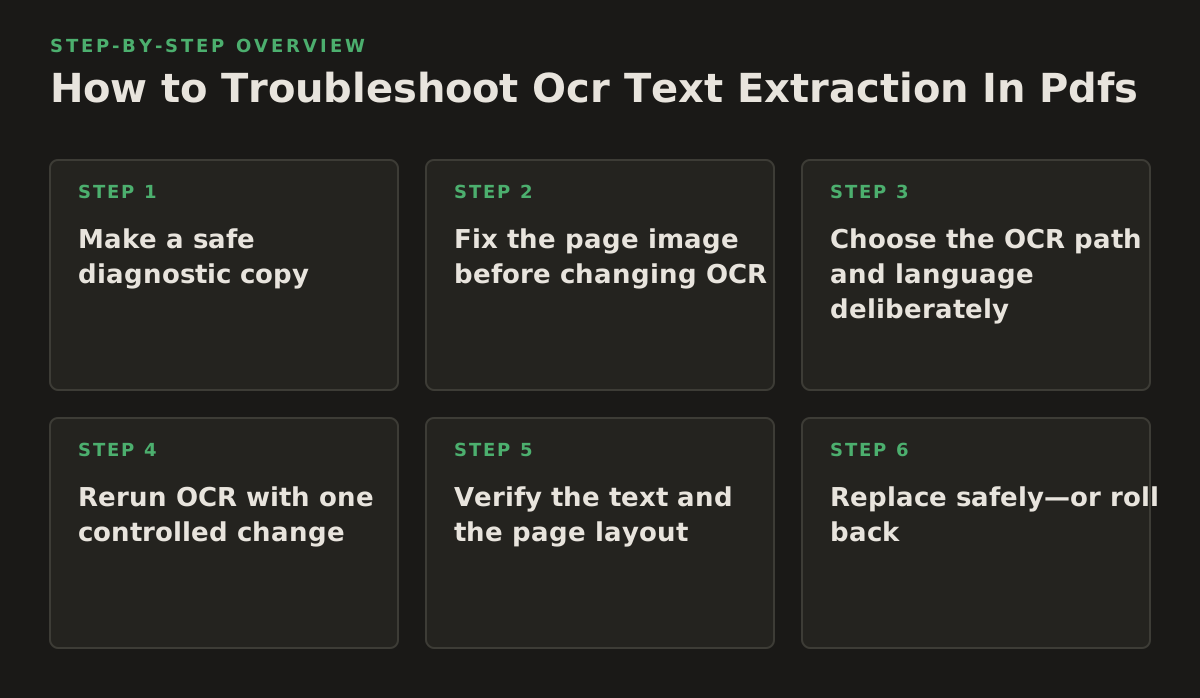
Step 1: Make a safe diagnostic copy
Save a working copy with a clear name, such as contract-ocr-test.pdf. Keep the source unchanged so you can compare pages and restore it if a new text layer causes problems. Then follow this sequence:
- Open the copy in a PDF viewer and try to select or search for text.
- Check whether the problem affects every page or only particular pages, languages, or columns.
- Inspect a page at normal reading size and at a closer zoom for blur, skew, faint print, or cut-off edges.
- Choose the correction that matches the symptom: improve the page image, change OCR settings, or remove and rebuild a bad text layer.
- Run OCR on the copy, then verify both the extracted text and the visible page layout.
- Keep or replace the file only after checking the output; retain the original for rollback.
Tell an image-only PDF from a bad text layer
If selecting text does nothing, the page may be an image that has not been OCR-processed. If selection works but search results are missing, characters are scrambled, or copied text appears in the wrong order, a text layer may exist but be inaccurate. A PDF can also contain a mixture: some pages have searchable text while others are scans. Diagnose page by page rather than assuming one setting will fix the whole file.
| What you observe | Likely cause | First check |
|---|---|---|
| No selectable text on a scanned page | No text layer | Run OCR on a copy |
| Wrong letters or missing words | Image quality, language, or recognition issue | Inspect the scan and OCR language |
| Words copy in an odd order | Columns, tables, or layout interpretation | Compare reading order with the visible page |
| Some pages work and others do not | Mixed source pages or inconsistent scans | Check the affected pages individually |
Step 2: Fix the page image before changing OCR
OCR software recognizes patterns in an image. A tilted line of text, shadow across a gutter, faint photocopy, or clipped margin can make characters ambiguous regardless of the recognition engine. Check the page image first; otherwise, changing OCR settings may produce different errors without resolving the cause.
Correct only defects you can see
- Rotation or skew: straighten pages when baselines visibly slope. OCRmyPDF documents rotation and deskewing as scan-correction options in its cookbook.
- Low contrast or background noise: compare the original scan with a cleaned copy. Avoid aggressive cleanup if it erases punctuation, footnotes, stamps, or faint annotations.
- Clipped text or page edges: recapture or rescan when possible. Cropping cannot restore a word that is already missing from the image.
- Small print: inspect the source resolution and scan settings. Tesseract’s official image-quality guidance discusses issues such as skew, noise, and resolution that can affect recognition.
Keep a clean, unchanged copy of the page image alongside any processed version. For court exhibits, archival records, or annotated research, image cleanup should not obscure marks that may matter as evidence or context.
Step 3: Choose the OCR path and language deliberately
The right route depends on the PDF, your permissions, and your organization’s document-handling rules. A desktop PDF editor may be suitable for a small batch; a repeatable local workflow may suit a research archive; a cloud OCR service may be appropriate only when your organization has approved that handling path.
Match the tool to the document
- Desktop editing: Adobe’s Acrobat guidance explains how to recognize text in scanned documents; see its scanned-document workflow. Menu names and available controls may differ by version or permissions.
- Local or scripted processing: OCRmyPDF offers documented options for preparing and processing PDFs. Test the workflow on a copy before applying it to a batch.
- Cloud OCR: Google Cloud Vision documents text detection and document text detection in its OCR overview. Check your organization’s approval and data-handling requirements before sending any document.
- Translation after OCR: if the PDF is a scan, establish that the extracted text is readable before translating. InOtherWord.AI provides workflows to translate scanned PDFs and to translate PDF documents when the source is already text-searchable.
Set the recognition language to match the page, not the document’s presumed language. A multilingual contract, journal article, or government form may contain names, quotations, or sections in other scripts. If language detection is uncertain, process a representative page with the most likely language setting and compare the output against the image. Do not assume that a language mismatch is a scan-quality problem.
Step 4: Rerun OCR with one controlled change
Once you know the likely cause, change one thing at a time: correct the image, set the language, or choose a different layout-handling option if your tool provides one. Record the setting and affected pages. If you change several variables at once, it becomes difficult to tell which change improved recognition—or introduced a new error.
Worked example: a scanned bilingual agreement
A legal team receives a contract with selectable English text on some pages and scanned French exhibits on others. Search finds English clauses but not the exhibits. The team confirms that the exhibit pages are image-only, checks that their margins are intact, and corrects a visibly tilted page on a working copy. It then runs OCR with a French language setting on those pages and checks names, article numbers, accents, and handwritten annotations against the scan. The English pages are left unchanged. This page-specific approach avoids rebuilding a text layer that was already working.
Adjust scope based on the signal: if errors cluster on one page, correct that page first; if the same character substitutions recur throughout, review language and scan settings before processing the full file. Treat any sample size or error tolerance your team adopts as an illustrative starting policy, not a universal benchmark. Increase review when errors affect names, citations, legal obligations, dosage instructions, or other high-consequence details; reduce it only when documented checks show the residual errors are immaterial to the task.
Step 5: Verify the text and the page layout
Do not treat a “searchable” status as proof that OCR is accurate. Compare extracted text with the visible page, including headings, footnotes, tables, and multi-column sections. The text layer may be readable while the reading order is wrong—a serious issue when translating a table or extracting a clause from a contract.
Use a review checklist tied to the document’s purpose
- Search for a distinctive term and confirm the result opens at the correct page and location.
- Copy a paragraph containing punctuation, numbers, and special characters; compare it with the scan.
- Check table row and column relationships, page headers, footnotes, and text split across columns.
- For high-impact content, have a qualified reviewer verify names, dates, amounts, citations, and instructions against the image.
- Open the PDF in a second viewer if text selection or page rendering behaves unexpectedly in the first.
Google’s OCR documentation describes document text detection as returning text structure, including page-level and block-level organization; that structure still needs review against the source document. For research papers, verify formulas and references. For healthcare records, verify clinical terms and values. OCR output is a draft transcription, not an authoritative replacement for the scan.
Step 6: Replace safely—or roll back
Before distributing a corrected file, save it under a new version name and reopen it. Confirm that pages render, search and text selection work where expected, and the document’s visible content has not changed. Keep the original according to your retention rules. Do not overwrite a source record merely because the corrected copy looks searchable.
Troubleshoot the remaining failure
- OCR creates no searchable text: confirm the operation covered the affected pages, the PDF is not restricted, and the selected tool supports the file’s format.
- Text is still garbled: compare the image with the extracted text; then test language, skew, contrast, and scan quality separately.
- Reading order is wrong: treat columns, tables, and sidebars as layout problems. Review the extracted structure and preserve the visual PDF for reference.
- The corrected PDF looks different: stop distribution, reopen the untouched source, and compare page rendering. Rebuild from the original rather than stacking another OCR pass on a questionable result.
Do this first: make a copy of the PDF and test text selection on one page that shows the failure. That single check tells you whether to investigate a missing text layer, faulty recognition, or page-image quality before you change the whole document. If you need a next step after verification, InOtherWord.AI offers document translation for PDFs and other supported file types while preserving layout elements such as tables and images.
Authored with NotFair SEO
Related guides
Keep researching the right workflow
These pages help move from general document-translation research into the specific file format or workflow you need.
A practical workflow for translating scanned PDFs with OCR while preserving enough structure for real review, sharing, and downstream editing.
Explore pageHow to translate PPT and PPTX decks without breaking slide layouts, charts, and speaker-ready formatting.
Explore pageThe best AI PDF translator is not just about language quality. It also needs OCR, layout preservation, and reviewable output for real files.
Explore pageCommercial pages
Ready to translate the actual file?
Jump from the guide into the product page that fits your document type, then continue into pricing when you are ready.
Format page
Translate PDF Documents
Translate PDF files while preserving layout, tables, and page structure.
Explore pageFormat page
Translate Scanned PDFs
OCR and translate scanned PDFs without rebuilding the layout by hand.
Explore pageFormat page
Translate PowerPoint Presentations
Translate PPT and PPTX decks while preserving slide layouts, tables, and speaker-ready formatting.
Explore pageTranslate layout-heavy PDF reports, manuals, forms, and client-ready files while keeping tables, headings, and images readable.
Explore page